Guide • Unofficial Reference

SpectralAware 2.1 Explained

SpectralAware 2.1 is the in-game analysis software in Frostwood Interactive’s Shutter Story. This spoiler-light reference uses the Steam listings and official demo patch notes to explain its tools and recent changes.

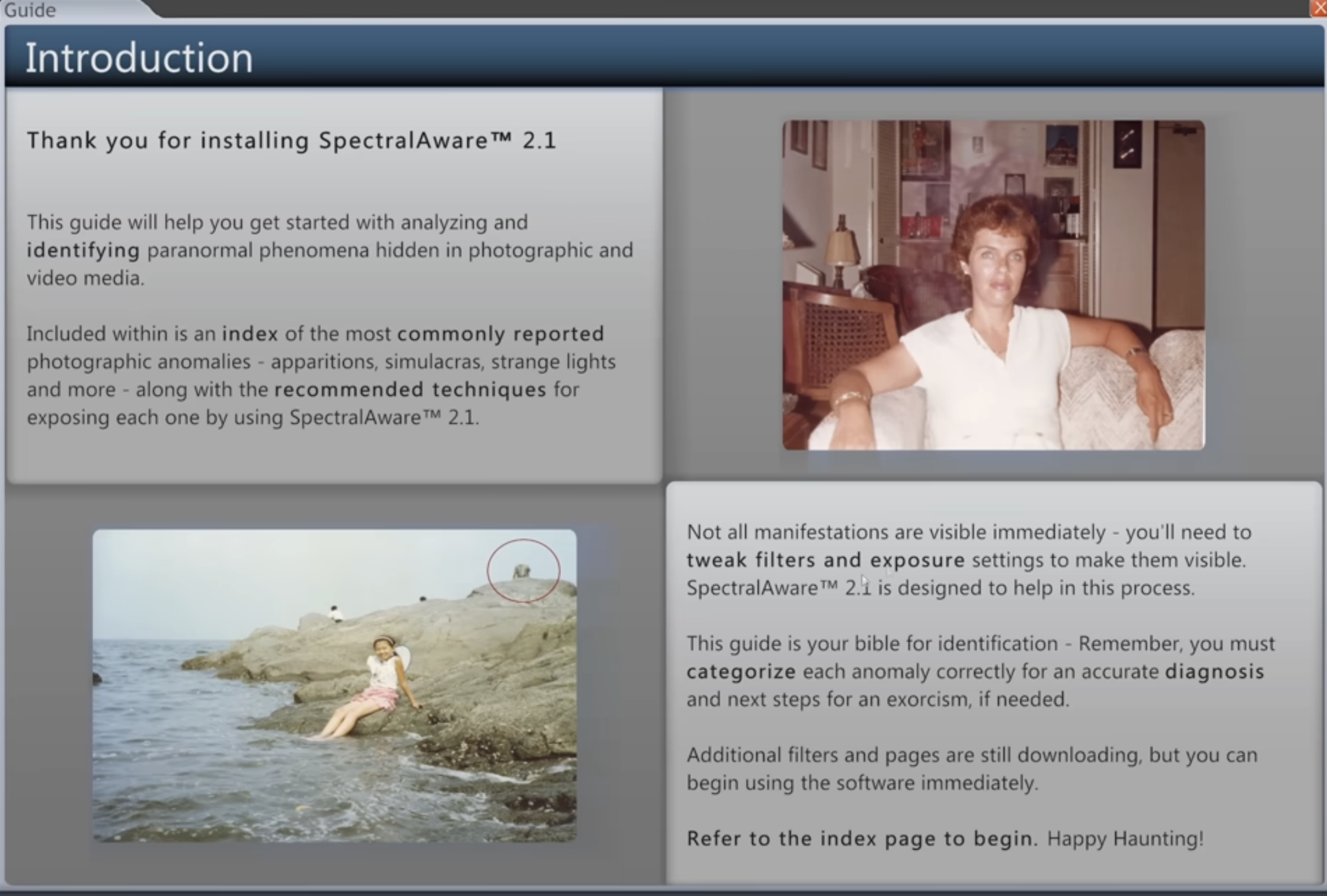
Introduction page of the SpectralAware 2.1 guide with example photographs
The in-game guide introduces photo and video anomaly analysis.

What SpectralAware 2.1 Does

SpectralAware is the workstation you use to examine family photographs and home videos for paranormal anomalies. It is part of the game’s fictional investigation, alongside first-person exploration of Eli’s house.

  • Image analysis: exposure, contrast, noise, and filters help you inspect details that may not be clear in the original view.
  • Video analysis: playback controls let you examine moving footage as well as still photographs.
  • Classification: the in-game manual provides descriptions and examples to help you identify what you find.

A Spoiler-Light Analysis Workflow

The following is an editorial approach to the documented tools, not a definitive walkthrough or an answer key:

  1. Inspect the media: look at the photograph or video before adjusting it, including any visible date or descriptive caption.
  2. Try the image tools: adjust exposure, contrast, noise, and available filters, comparing the changes as you go.
  3. Review moving details: for videos, use slower playback or looping when a moment needs closer inspection.
  4. Check the guide: compare a suspected anomaly with the manual’s descriptions, examples, and appendix before choosing a category.
  5. Review the feedback: use the demo’s results to see whether an answer was missed, incorrect, or correct, then revisit the reference material.

Interface Improvements in Demo v0.2

The February 19, 2026 v0.2 notes document these additions and adjustments:

Guide summaries
A summarize toggle provides a shorter way to read guide information.
Fullscreen analysis
Sliders and filter controls are available in fullscreen, and a reset control helps restore image adjustments.
Answer feedback
Wrong-answer feedback and false-positive examples help clarify why a suspicious detail may not fit an anomaly category.
Video playback
0.5× and 2× speeds and looping give players more control when reviewing clips.

Guide Categories & October Updates

The guide has changed during demo development. In v0.2, “World Inconsistencies” was renamed “Reality Glitches,” and the “Figures and Silhouettes” category was removed. Use the guide in your current build instead of treating an older category list as complete.

  • Guidebook appendix: the October 12, 2026 update added an interactable appendix.
  • Clearer results: missed, incorrectly identified, and correctly identified hauntings are distinguished without revealing the hauntings themselves.
  • Expanded demo: that update also added character voices, house visual upgrades, four photos with randomized hauntings in two of the added photos, new events, and performance and stability improvements.
  • Later hotfix: the October 16 v0.3.2b notes document earlier night vision access and a fix for the “Grandma on sofa” anomaly display.

These details summarize official patch notes; they do not claim firsthand testing of the current demo.

Tips for Demo Players

  • Compare before deciding: our suggestion is to adjust one setting at a time so you can track what changed.
  • Read the examples: use the manual’s false-positive material as well as its anomaly descriptions.
  • Use reset and playback controls: return to a baseline image or replay a video moment when an adjustment makes the evidence harder to judge.
  • Keep the current guide handy: category names and reference material have changed since earlier demo versions.

For Steam access, storage requirements, and release context, see our demo quick start guide.